
The ‘Silhouette Cameo 4‘ is a DIY cutting machine that can cut a range of materials and also sketch and draw. It is an advanced machine for small DIY business owners who want to improve their crafting skills and increase productivity. Before using this machine, you should know that it runs on the official software, Silhouette Studio. This software needs to be downloaded and installed on your computer to set up the Silhouette Cameo 4 and send design commands to it. If you’re unfamiliar with this machine and want to learn about its setup, key features, and useful tips, this guide explains everything in detail.
What Software Does the Silhouette Cameo 4 Use?
The Cameo 4 uses Silhouette Studio, a free desktop software designed for Silhouette machines. It is compatible with Windows and Mac systems, allowing you to create, edit, and send designs to the cutting machine. This app receives regular updates, so you may need to update this software from time to time to ensure it works properly with your machine. Mobile users can also install the official app, Silhouette Go, to operate their machine.
How to Download and Install Silhouette Studio?
Downloading and installing the ‘Silhouette Studio App‘ is important. However, the process may seem a little complicated. Here are the steps to install it on your computer and mobile devices.
On Computers (Windows/Mac)
- Visit httsp://silhouetteamerica.com/software in a web browser on your computer.
- The official website will open. Select your operating system to begin the download.
- Wait for the software to download. Once the download is complete, press Ctrl + J to open the download history.
- Find and click on the downloaded Silhouette Studio file.
- Click the “Run” button to continue, and follow the instructions.
- Open the app once the installation is complete. For Mac users, the steps are similar, with a few additional steps.
- Open the .dmg file on your Mac, then drag the ‘Silhouette Studio icon‘ into the Applications folder to start the installation.
- Let the software install and the progress bar finish.
- Finally, open the app once the installation is finished.
On Mobile (Android/iOS)
- Go to the Play Store (Android) or the App Store (iOS) on your mobile device.
- Search for the “Silhouette Go” app and install it by tapping “Get” or “Install.”
- Open the app, and read the instructions. Then, sign in with your existing username and password. You can use the Silhouette Studio credentials to sign in.
- However, if you’re a beginner, select the option to create a new account.
- To create a new account, tap on the ‘Sign Up‘ button and enter all important information, including your full name, email address, and a strong password.
- Finally, select your Cameo 4 machine when prompted.
Now, you’re ready to connect your ‘silhouette machine‘ to your device.
How to Connect Silhouette Cameo 4 to the Software?
After downloading & installing the app, connect your machine to your device via USB or Bluetooth. Here are the steps for both methods.
Method 1: USB Connection
- Unpack your Silhouette Cameo 4, and take off all the protective coverings.
- Ensure that the box contains a USB cable, a power cord, a cutting mat, tool adapters, and a Silhouette setup CD.
- Connect the power adapter to the machine and its other end to the power outlet on the wall.
- Now, connect the ‘USB cable‘ to the machine and to your computer or laptop.
- Turn on your machine by pressing the power button, and you’ll see the display turn on.
- From here, you can select the necessary settings.
Method 2: Bluetooth Connection
- Power on your ‘Silhouette Cameo 4‘ and press the Bluetooth button. It will turn blue.
- Click the Start button on your computer and search for Settings.
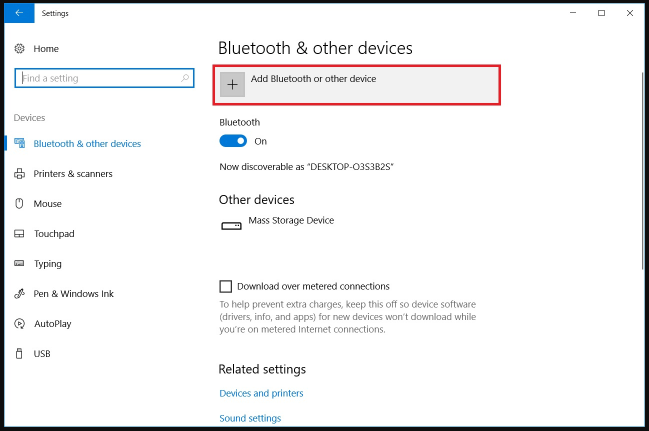
- Select the “Bluetooth & other devices” option, then select “Add Bluetooth or other device,” and choose your Cameo 4 machine.
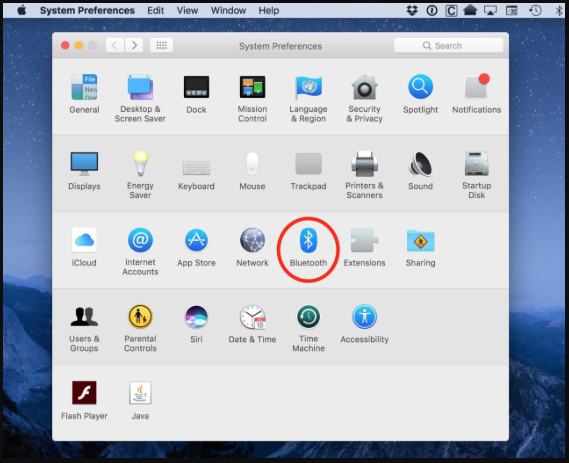
- If you have a Mac, go to System Preferences and enable Bluetooth.
- Click “Connect” next to the Cameo 4 option.
- Open your software, go to the Send panel, and select your machine.
Key Features of Silhouette Studio
Silhouette Studio is the official software for Silhouette machines and includes a range of features for everyday design and crafting. It has a beginner-friendly interface, print-and-cut functions, and text customization. If you’re using this app for the first time, here are the detailed features you’ll be using:
- Design & Editing Tools: These tools are used to create custom shapes, draw your own designs, and edit them using lines and curves.
- Print & Cut: This feature uses registration marks to let the machine cut printed images and create custom stickers, decals, and labels.
- Text Customization: The text tool allows you to add text to the designs using fonts installed on your computer or download them from the Silhouette Design Store.
- Vector & Image Support: The free version of the Silhouette Studio offers basic design creation and customization. However, the upgraded version allows importing and editing of SVG, JPG, PNG, and GIF files.
- Layering & Optimization: This feature allows you to organize design elements into layers for easier editing.You can create new layers and rename layers to optimize the design.
- Library and Store: Silhouette Studio Design Store is available to purchase designs, and it also has a built-in library to organize files.
- Send Panel: The Send panel allows you to cut designs according to the settings, such as material type, speed, force, and passes, with a preview feature that can show the cutting path.
Helpful Tips for Using Silhouette Cameo 4 Software
Using the ‘Silhouette Cameo 4 Software‘ may seem complicated to you. However, there are a few tips you can follow when getting started with your Cameo 4 machine.
Always Test Cut
It is recommended to take a test cut before cutting a full design. It helps you check if the cuts are too deep or not cutting properly. You can also adjust the blade depth and force settings if the test cut is not satisfactory.
Check Registration Marks
When your design is finalized, go to the Send panel and check whether it has red outlines. These are the registration marks that are important for cutting a design precisely. If you don’t see them on your design, select your design, and then select the “Cut” option to turn these lines on.
Save Designs Regularly
You must save all designs in the ‘Silhouette Studio‘ to keep them secure for future access. This helps protect your work for future edits. Additionally, it offers a backup in cases of cloud failures, when you can export the file to other cutting software.
Keep Software Updated
Silhouette Studio works like regular software and requires updates to run properly. A timely update ensures good performance, fixes common bugs, and provides access to new design features.
